Copy Payee Into A New Customer/Vendor
What Copy Payee Into A New Customer/Vendor does
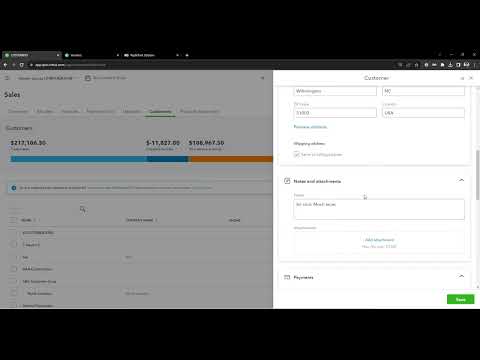
Creates a button that will append the text of (Converted) to the end of the Customer/Vendor Name. It will also create a Customer with the original name and basic details if you are converting a Vendor, or vice versa. This will wait before saving to give you the option to change details and you can choose to deactivate the original payee.
Video tutorial
How to turn on Copy Payee Into A New Customer/Vendor
- Install the RightTool for QuickBooks Online Chrome extension.
- Create a RightTool account and upgrade to PRO, then log in from the RightTool options page.
- Open the RightTool options page and choose Lists PRO in the sidebar.
- Switch on Copy Payee Into A New Customer/Vendor, then click Save & Refresh All QBO Tabs.
Get Copy Payee Into A New Customer/Vendor with RightTool PRO
Unlock Copy Payee Into A New Customer/Vendor and every other PRO feature for QuickBooks Online.
Go PRO Add to ChromeMore Lists PRO features
- Batch Edit Customer/Vendors
- Batch Edit/Import Classes & Locations
- Pay Bills Screen Enhancements
- Receive Payment Screen Enhancements